

See who has time, week by week.
Each person’s planned hours against the hours they can work. Book time with no estimate, plan a hire, move work to who has room.
Inside Jira. Privacy first. No servers. It changes Jira only when you press Move or Apply.

Plan it in Jira
Estimate it, date it, give it to someone. Workline plans the rest, with nothing to set up.
Set an estimate
Fill in Original estimate on the work item.

Set its dates
Add a Start date and a Due date, or put it in a sprint.

Assign it
Choose who does the work.

See it on the work item
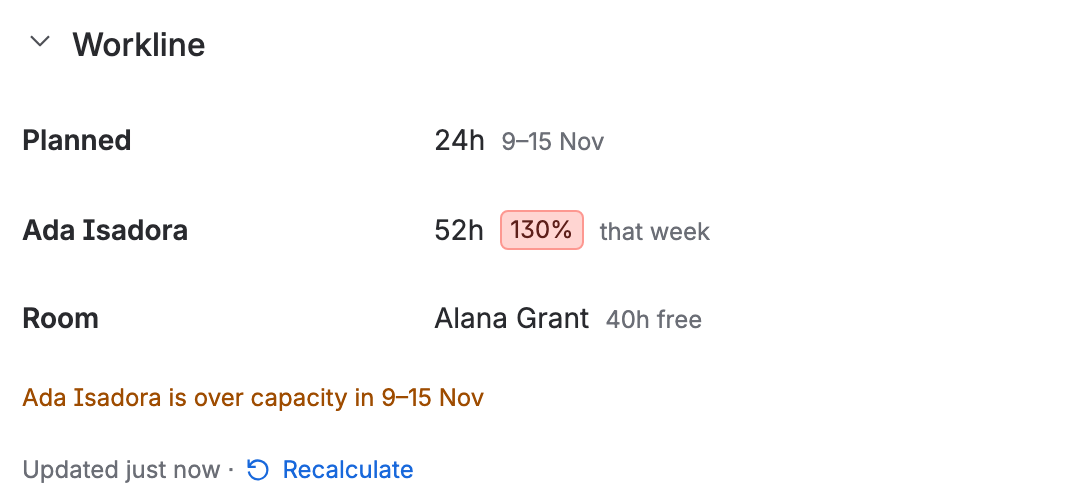
Workline shows its hours and the assignee’s week right in its Details, and who has room.


Every space, one plan
A person’s work in every space you pick lands in one row, so each week shows what they carry in all of it. Look at everyone, at a team, at the people who are over capacity, or by epic or by role.


Did the plan hold?
Add the last two or four weeks to the plan: the hours each person logged, or the story points they finished, against what they could work. Teams that estimate in story points can plan in them too.


On the work item
A work item shows its assignee’s week with and without it, what fills that week, and who has room, each with a Move. When they are over capacity it says so.

Book time that has no estimate
Set aside part of a person’s time for onboarding, support or a space, an epic or a work item. On a work item or an epic it counts the larger of the booking and the estimated work in it, never both. Not sure yet? Mark it tentative, and leave tentative time out when you want the sure plan.

Put work where there is room
Over capacity? Press Move on a work item: everyone’s load is shown before and after, and Jira reassigns it as you. Work with no dates? Press the hours under Unscheduled: Workline suggests start and due dates in the earliest days that person has room, highest priority first. Change any, then Apply.


The next four weeks, on a dashboard
Each person’s next four weeks, over capacity first, on any Jira dashboard. Each viewer counts only the work items they may browse.

How the hours are worked out
Remaining estimates of open work items
Or the original estimate less what was logged, when Jira has no remaining one.
Spread over the dates it has
Its start and due dates, else its sprint’s dates, from today on. A start date alone is worked at the person’s own hours a day.
Against the hours a person can work
Jira’s time tracking settings or Workline’s own, part-time hours, holidays and time off.
As a share, week by week
Green to 100%, yellow to 120%, red past it. A Total for the weeks shown.
What it never guesses
No dates, no week
A work item with neither dates nor a sprint is shown as Unscheduled, never put in a week.
Late work is flagged
A work item past its due date or sprint end is planned for today, and marked Late.
A parent’s estimate counts once
When a parent and its children both have a remaining estimate, the children’s count, and the parent’s own value is named.
Story points need a pace
A person’s points a week is what they finished in the last 6 weeks, or the number a Jira admin sets. With neither, their points show with no lozenge.
A booking counts once
A booking on a space, an epic or a work item counts the larger of it and the estimated work in it, week by week, never both.
Jira changes only when you press Move or Apply
Move sets the assignee and, if you give one, the due date. Apply, on a plan of unscheduled work, sets the start and due dates you left ticked. Both as you. Never an estimate, never anything else.
What you get
The plan
- One row per person, one column per week
- 4, 8, 12 or 26 weeks, each week’s planned hours against the hours they can work.
- The share as a lozenge
- Green to 100%, yellow to 120%, red past it.
- A person’s work items
- Open a row to see each work item with its hours in each week.
- Weeks back
- Add the last 2 or 4 weeks: the hours each person logged, or the points they finished, against what they could work.
- Story points
- Plan in points where your work items carry them, against each person’s own pace.
- Rows by role, epic or space
- A role’s hours against its people’s capacity, or the hours an epic or a space needs, week by week.
- Total and Unscheduled
- The weeks’ total, and the hours on work items with no dates and no sprint.
- Open in Logline
- Each opened person links to the hours they logged, in Logline.
Plan ahead
- Book time
- Part of a person’s time, as a share or hours a week, with no estimate behind it.
- Tentative bookings
- Mark a booking tentative, then count it or leave it out with one switch.
- Plan unscheduled work
- Suggested start and due dates in the earliest days each person has room, highest priority first. Edit, then Apply.
- Counted once
- On a space, an epic or a work item, the larger of the booking and the estimated work in it.
- Placeholders
- A row for a hire you have not made. Fill it with a person and its bookings move over.
- Move work
- Give a work item to someone with room, seeing everyone’s load after. Jira reassigns it as you.
The hours people can work
- Jira’s time tracking, by default
- Its hours a day and days a week. Or Workline’s own.
- Part-time
- A person’s own hours a day and working days.
- Holidays and time off
- Days nobody works, and the days one person does not.
Across your site
- Teams
- Jira groups a Jira admin offers. A team’s members each get a row, with or without work.
- Filters
- Team, Weeks, Space, People, Role and Over capacity, then Book time and Placeholder.
- Who is over, who is free
- The people over capacity, and the people with time free.
- Excel, CSV and a link
- Download the plan, or copy a link with every choice in the address.
- Dashboard gadget
- Each person’s next four weeks, over capacity first.
For Jira admins
- Workline settings
- The working week, part-time hours, holidays, time off, the groups offered as teams, roles and story points a week.
- Roles and points a week
- Name the roles and give each person one. Set a person’s story points a week, or the site’s.
- Who can book
- Everyone who can open Workline, or only the groups you choose.
- Kept on Atlassian
- Its settings, bookings and placeholders, account ids, each person’s remembered scope and a ten-minute cache of a plan without names.
Dark mode, too
Every Lineset app follows your Jira theme, light or dark.

Secure and private
- Inside Jira
- It runs where your Jira runs, and nothing leaves your site.
- No servers
- None of ours, and no external services: nothing is sent anywhere.
- One write
- The assignee and due date on Move, and the start and due dates on Apply when you plan unscheduled work, as you.
- Reads as you
- Your own Jira permissions apply to what it reads.
Built on Atlassian Forge. No tracking. What it reads and stores →
Pricing
Free up to 10 users
The price per user drops as you grow
- Billed by Atlassian
- Every feature on the free tier
- 30-day free trial
Questions
What does it show right after I install it?
A plan. Workline reads the estimates, dates and sprints your work items already have, so the first page it opens is the plan, with nothing to set up first. Jira’s time tracking settings give the hours a day and days a week until you set Workline’s own.
Does Workline change my work items?
Only when you press Move (the assignee and, if you give one, the due date) or Apply on a plan of unscheduled work (its start and due dates). It does it as you, with your Jira permissions, so Jira’s history names you. Bookings and placeholders are kept in Workline’s own storage, never on a work item.
Is it fast?
In our test it read a whole demo site’s 70 open work items in under 3 seconds. A plan is kept for ten minutes, without names, and Recalculate reads it again.
What about work with no dates?
It is shown as Unscheduled, with its hours, and is never guessed into a week. Add a due date or put it in a sprint and it moves into the weeks it falls in. Or press its hours under Unscheduled and Workline suggests dates.
What does it cost?
Free up to 10 users, then billed per user by Atlassian, with a 30-day free trial. Every feature is on the free tier. The price per user drops as you grow, and the Marketplace listing shows the exact cost for your site.
All questions →Doing it with Jira’s own tools? Step-by-step guides →
Works well with
 LoglineWho logged the hours, on what