

Add dates and owners
Lesson 3 of 4
A link says what waits on what. A date says whether it lands in time. Nothing can be late against an epic with no date, and a blocker with no date reads as Unscheduled blocker (Watch), because nothing says whether it lands in time. This lesson gives the work its dates, an owner and a status.
Date the epic
-
Open the epic, the deliverable. Here that is STOR-1, Holiday checkout.
-
In Details, find Due date. If it says Add due date, press it and pick a day.
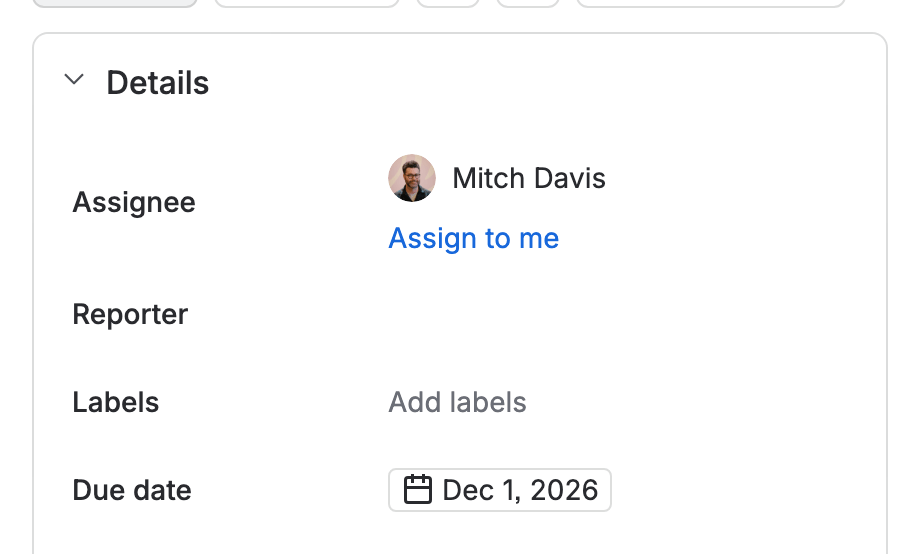
The Details column of STOR-1, with its Due date set

An epic with no due date can take its date from elsewhere. See below.
Date every blocker
-
Open a blocker, a work item that blocks another. Here that is DATA-10, Store inventory API.
-
In Details, press Add due date and pick a day.
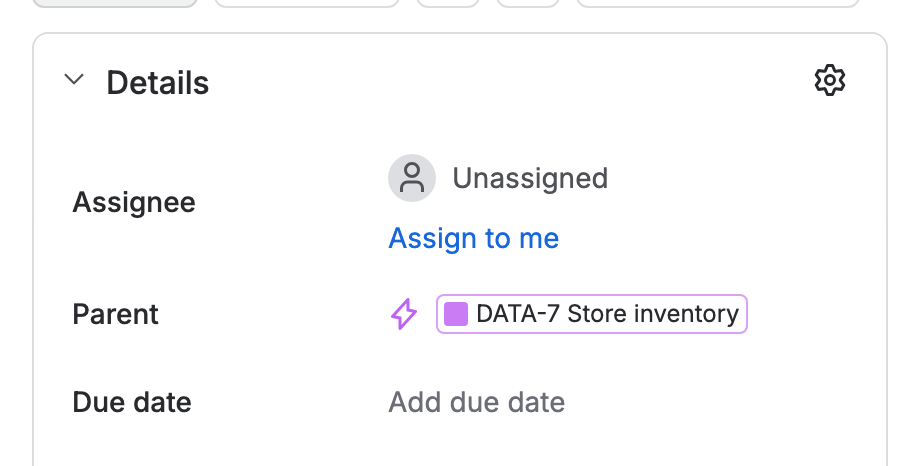
DATA-10’s Details: Unassigned, and the due date not set

Other dates Blockline takes
If a work item has no due date, Blockline takes the first of these that exists:
- Target end, on sites with Plans;
- the end of its sprint;
- the release date of its earliest fix version;
- for a parent, the date of its latest child.
Where dates come from lists every source in order. A Jira admin can reorder them or switch any off in Settings.
Give the blocker an owner
-
In the same Details, press the name under Assignee, here Unassigned.
-
Pick the person who owns the blocker. An assignee, or a place in an open sprint, makes an owner. A blocker with neither reads as Unowned blocker (Watch).
Move the status when work starts
-
Press the status button at the top of the work item, here To Do.
-
Pick the next status when work begins, here In Progress.
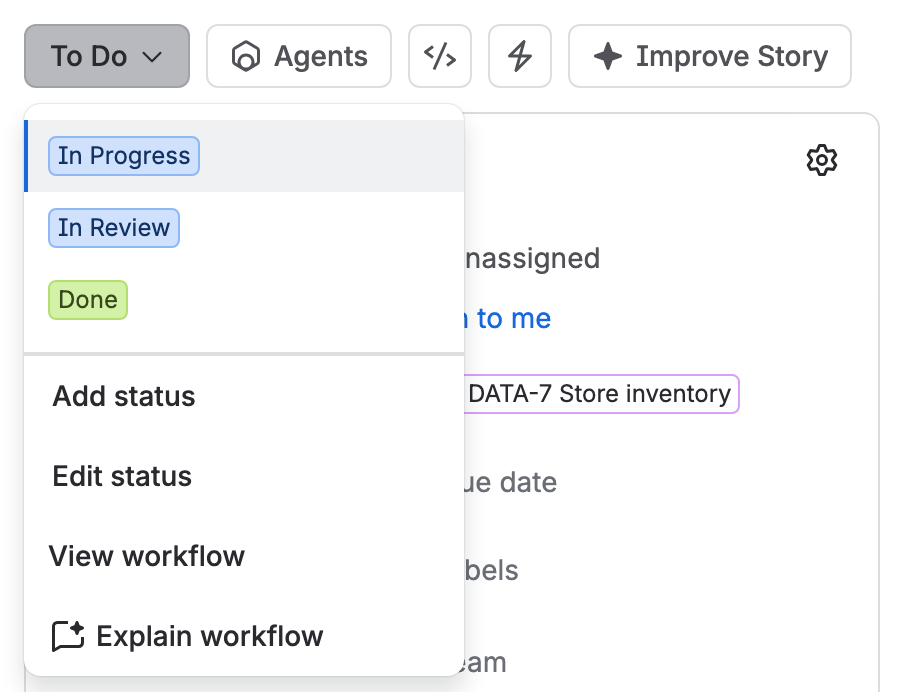
The status menu of DATA-10: In Progress, In Review and Done

Blockline reads the status category. Stalled blocker is a blocker still To Do close to the date of the work waiting on it, and Long in progress counts the days a blocker has been in the In Progress category. A board whose statuses never move cannot tell stalled work from started work.
If you don’t see it
If Add due date is missing, the space’s screen does not hold the field. A space admin adds it under the space’s settings. Without a due date, Blockline falls back to the other dates above.
What you have now
Dated epics, dated and owned blockers, and statuses that move. That is all Blockline needs. Next you read the result.