

Link a blocker
Lesson 2 of 4
Linking takes a few clicks on the work item that waits. This lesson adds a “blocks” link and then removes one. Blockline reads the link from Jira when you open a view.
The example: the story STOR-8, Facet ranking, waits on DATA-2, Order events stream, in another space.
Add a link
-
Open the work item that waits. Here that is STOR-8.
-
Press the plus button under its title and pick Link work item.
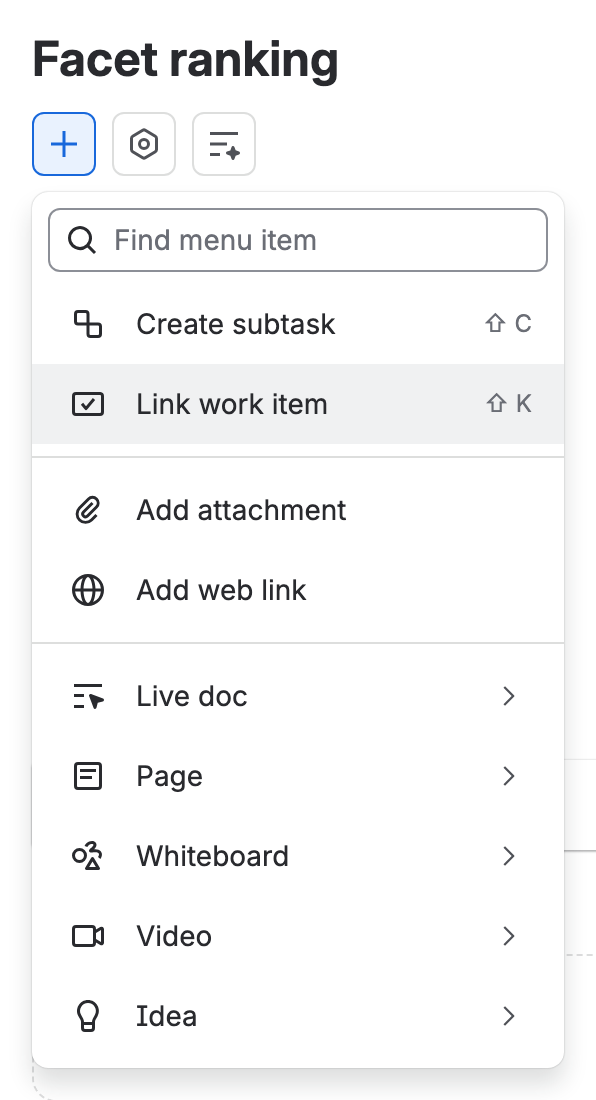
The plus menu on STOR-8, with Link work item picked -
Open the list of link types and pick is blocked by. From the blocker’s side, pick blocks instead; it is the same link.
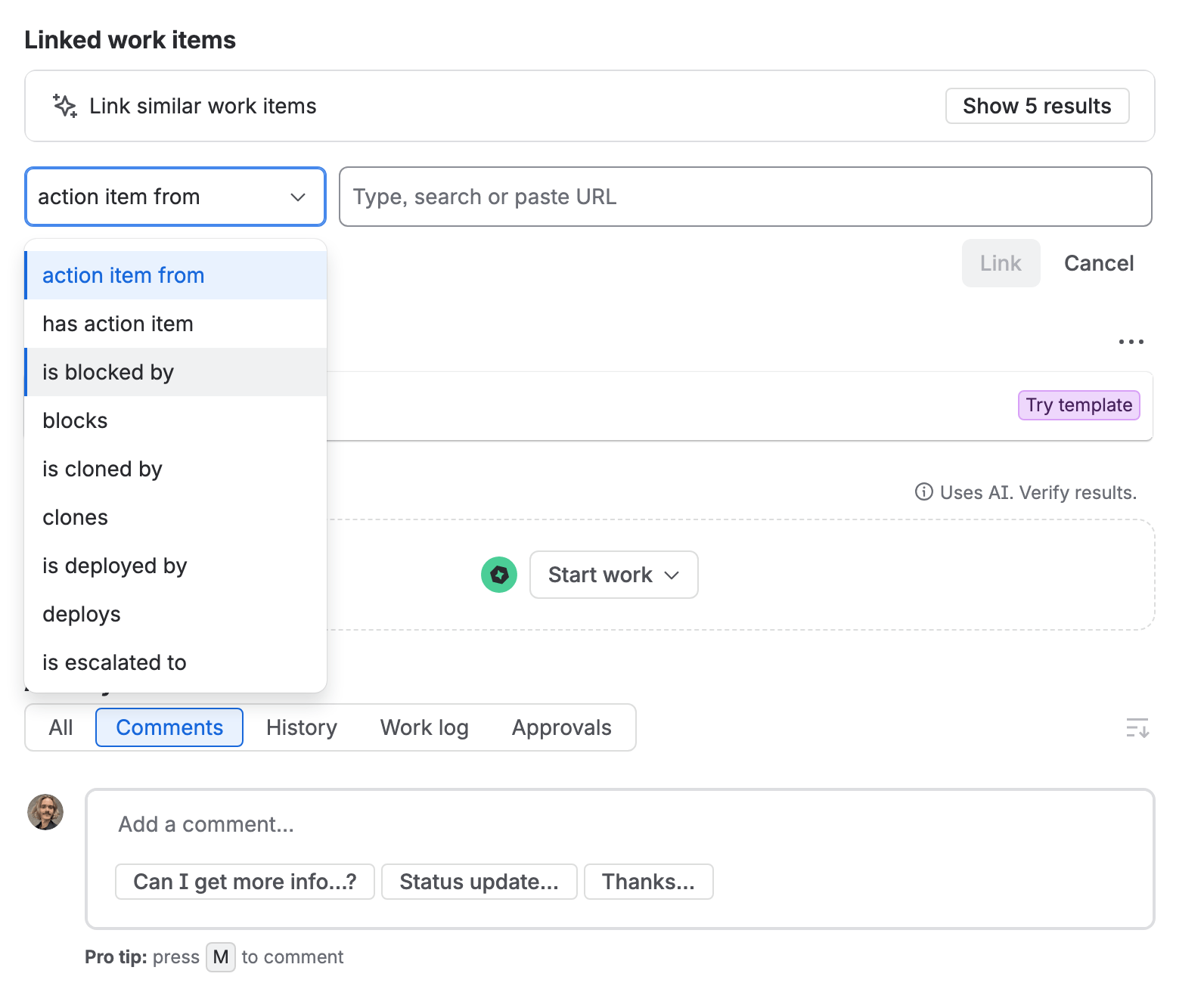
The link form with the type list open and “is blocked by” picked -
Click the search box and type the key or a few words of the other work item, here “Order events”. Pick DATA-2 in the list. The search finds work items in any space you can open, so a link across spaces is the same steps.
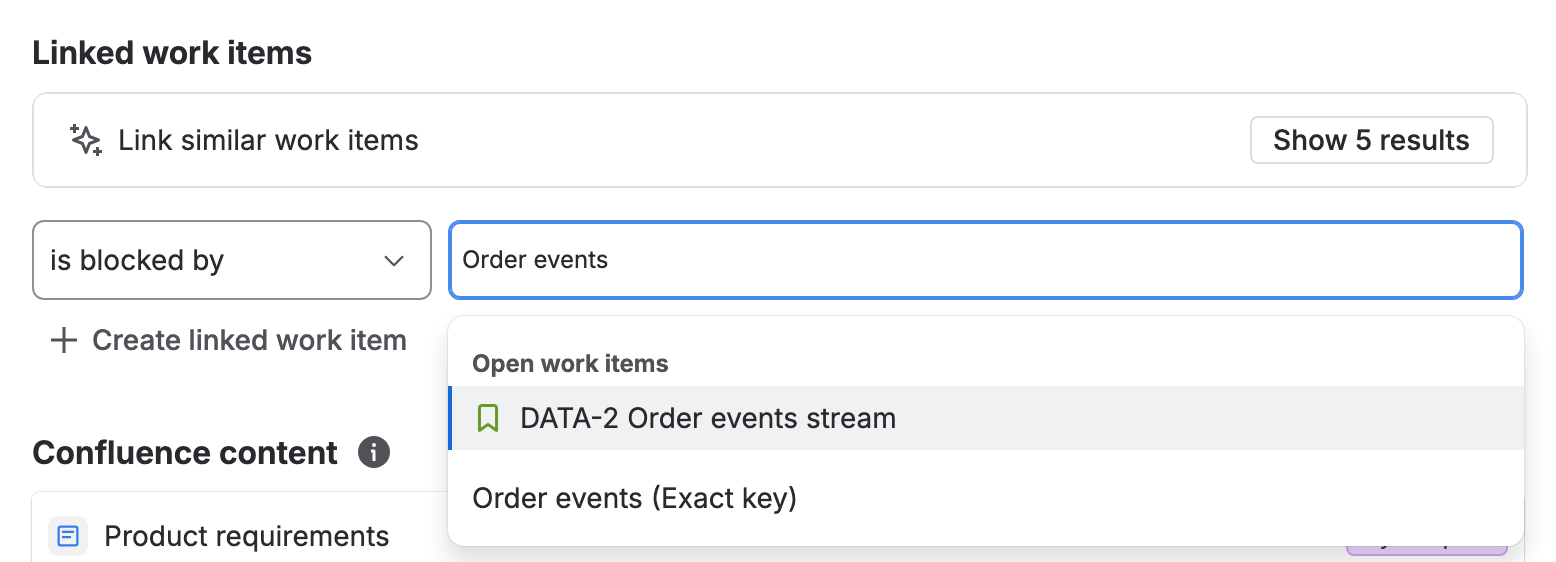
The type set to “is blocked by” and the search showing DATA-2 Order events stream -
Press Link. The link is saved at once, and the other work item shows it too.

A linked work item as Jira shows it under “is blocked by”, here STOR-4 waiting on PAYC-3


If you don’t see it
If Link work item is not in the menu, you lack the Link work items
permission in that space. A space admin gives it on the space’s
permissions page, at
https://your-site.atlassian.net/plugins/servlet/project-config/KEY/permissions,
with your space’s key in place of KEY.
If blocks is not in the type list, a Jira admin has removed the link type. Blockline can read another type instead: see Settings.
Remove a link
-
Open either work item of the link.
-
Move the pointer over the link’s row and press the X that appears, Unlink work item.

The pointer on a link’s row, with the Unlink work item button -
Jira asks “Remove the link to PAYC-3?”. Press Remove. Cancel keeps the link.

Removing the link takes the wait off both work items. Nothing else about them changes.
What you have now
A work item that is blocked by another, from either side, across spaces too. Blockline can now say which epic it holds up. Next you give the work dates and owners, so Blockline can say how late.