

Qualify a work item
Lesson 1 of 3
Qualifying a work item tells Dueline which EU reporting rules you think apply to an incident, and when you became aware of it. That starts the reporting clocks. You will qualify one work item and see its reports appear.
The assessment is yours. Dueline asks the questions and works out the dates. Whether a breach or an incident must be reported is your call, and national law may be stricter than the EU rule. Dueline is not legal advice and sends nothing to an authority.
Before you start, a Jira admin has switched on the rules that apply in Settings, and you are on the response team or a Jira admin. Only they can qualify.
Qualify a work item
-
Open the work item the incident is tracked on.
-
Open the Dueline panel: select View app actions, the hexagon under the work item’s title, then Dueline. A work item that is not qualified says No reporting clocks.

The Dueline panel on a work item that is not qualified: No reporting clocks, and a Qualify button -
Select Qualify. A dialog titled Qualify this work item opens.
-
Answer When did you become aware of it? It starts as the current time. Change the date and the time if you became aware earlier. Times are in your time zone, which the dialog says, and cannot be in the future.
-
Switch on each rule this work item meets. A rule left off starts no clock:
- GDPR: a personal data breach that may risk people’s rights. A second switch says the risk to people is high: Art. 34 asks that they are told too.
- NIS2: a significant incident.
- DORA: a major ICT-related incident, and when it was classified as major. That time cannot be before you became aware of it.
- CRA: an actively exploited vulnerability, or a severe incident that affects a product’s security. Pick which one.
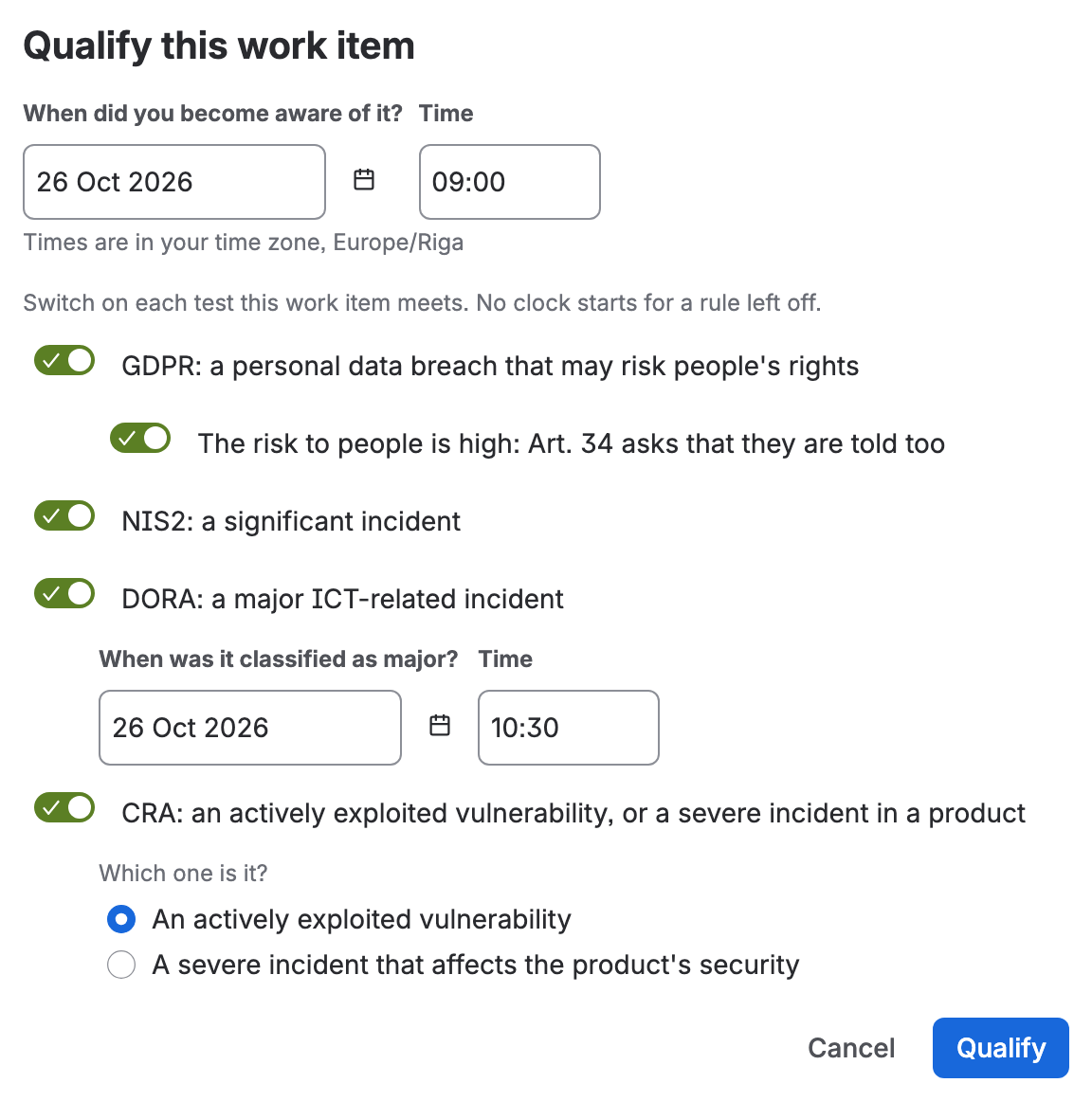
The Qualify dialog with every rule switched on You see one switch for each rule an admin switched on. One event can start several rules: an exploited vulnerability in a product that leaks personal data starts CRA and GDPR together.
-
Select Qualify.


What happens next
Dueline stores the answers and lists every report the rules ask for, each with its deadline. A work item is qualified once. The panel then says who qualified it and when you became aware.
A breach that is unlikely to risk people’s rights needs no notification under GDPR, but Article 33(5) still asks you to document it. Dueline lists that register line only for a breach you switch GDPR on for.
If you don’t see it
- No Qualify button: you are not on the response team. The panel says who may qualify. A Jira admin adds you in The response team.
- “Dueline is not set up yet”: no admin has saved the settings. A Jira admin opens Open Dueline settings from the panel and switches on the rules that apply: Settings.
- A rule you need is missing from the dialog: it is off in the settings. An admin switches it on.
- “This work item is already qualified”: a work item is qualified once, and someone qualified it first. Reload the panel: it lists the reports.
What you now have
A qualified work item: its reports and their deadlines, in the panel. Go on to Read the deadlines.