

File the report and record it as sent
Lesson 3 of 3
Dueline sends nothing to an authority. You file the report yourself, then record on the work item that you did, with when and the authority’s reference. The panel then shows it as sent, and any report that runs from it starts its clock. You will record one report as sent.
Before you start, read the deadlines of the work item. Only the response team and Jira admins can record.
File the report, then record it
-
In the Dueline panel, find the rule’s group and select Open the reporting page. It opens the authority’s own page, where you file. Check that the page and its form are still current: authorities move them. The group says how to file and what to have ready.
-
Open the report with the arrow beside its name to see what the article asks it to hold, then file it with the authority.
-
Back in the panel, select Record as sent on that report’s row. A dialog opens.
-
Set When was it sent? and Time to when you sent it to the authority. It cannot be before you became aware of the incident.
-
Type the authority’s case or reference number in Reference. It is optional. Never put a person’s name in it.
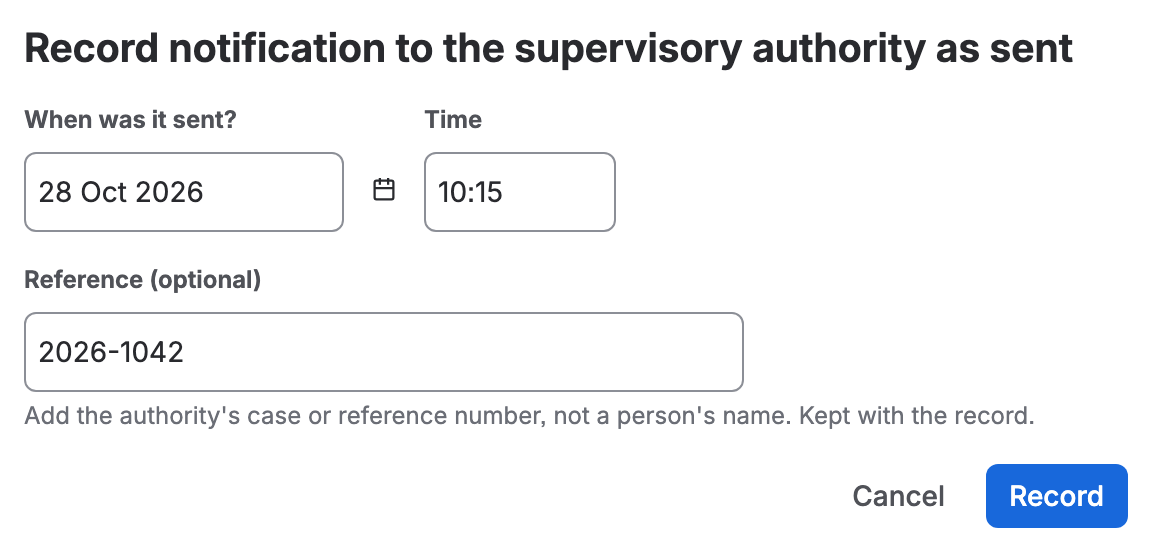
The Record as sent dialog, filled in -
Select Record.

Correct a record
If the time or the reference was wrong, select Correct on the sent row, set the right values and select Correct. The panel and the register then show the corrected entry. The original stays in the record, and the register’s downloads keep it on the same line (“…, corrects 28 Oct 2026 11:00 UTC, reference CASE-1”).
Reports that wait
A final report can wait for something other than an earlier report. Press Fix available when a fix or mitigation for an exploited vulnerability is available, or Incident handled when the incident is handled, and its deadline appears.
If you don’t see it
- No Record as sent button: you are not on the response team, or the report is already sent. A Jira admin adds you in The response team.
- The report is marked Waiting: it runs from an earlier report. Record that one first.
What you now have
A report recorded as sent, with who recorded it and when, in the panel and the register. Nobody can edit or delete a record: a correction is a new entry. To see every qualified incident at once, go on to Find Dueline in Jira and set it up.