

Edit or delete a worklog
Lesson 3 of 4
Typed 3h instead of 30m? Logged on the wrong day? A worklog can be changed or removed afterwards. Logline reads the change the next time it builds a report.
Find your worklog
-
Open the work item.
-
Scroll to Activity, under the work item’s fields.
-
Select the Work log tab. It lists every worklog on the work item, newest first, with who logged it, how long, and when.
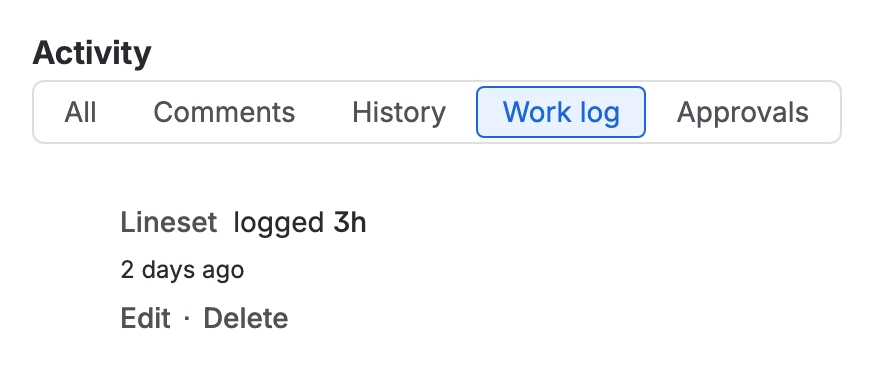
Jira’s Activity section with the Work log tab picked: one worklog, logged 3h, with Edit and Delete under it

Edit it
-
Select Edit under the worklog.
-
In the Edit work log dialog, change Time spent, Date started or Work description. Time remaining is there too.
-
Select Save.
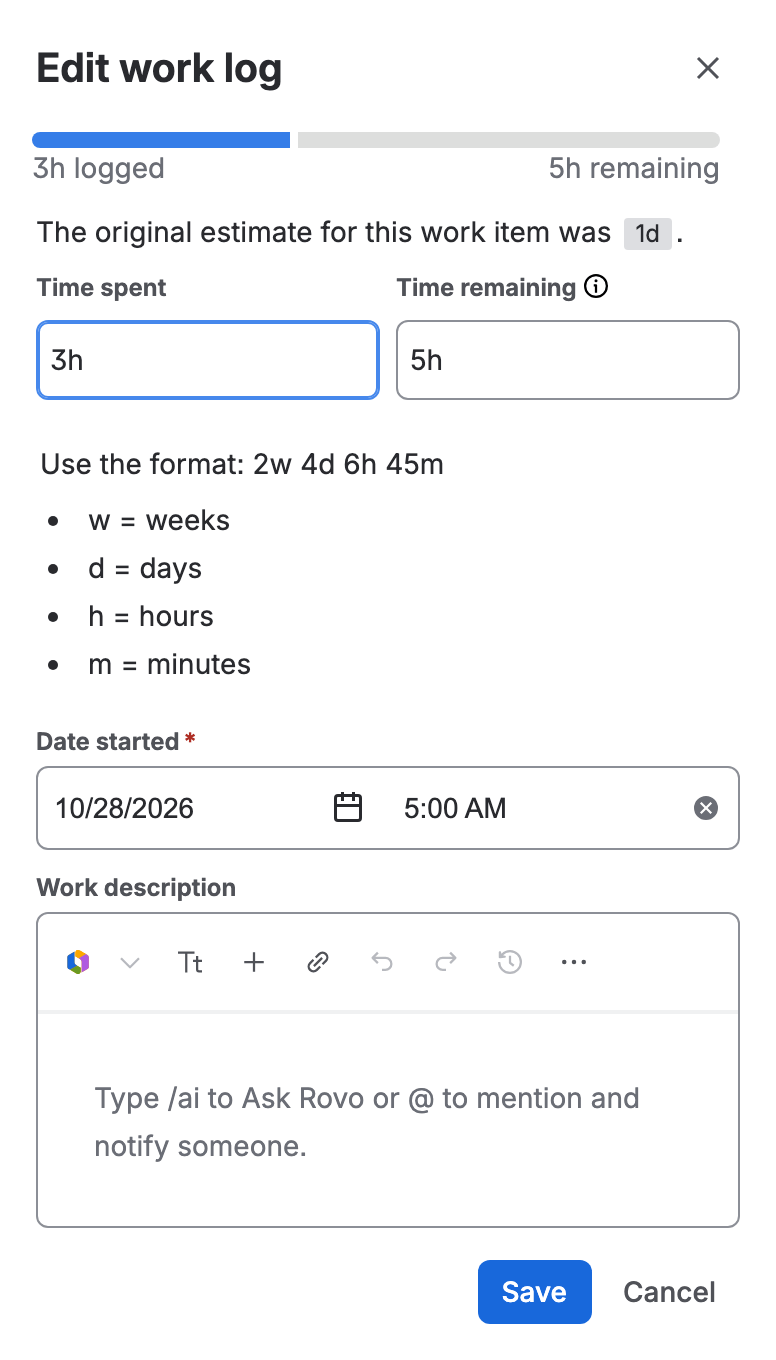
Jira’s Edit work log dialog showing the worklog’s Time spent, Time remaining, Date started and Work description

Delete it
- Select Delete under the worklog.
- Jira asks Delete worklog entry? and says “Once you delete, it’s gone for good”. Adjust time remaining is ticked: by default Jira adds the deleted time back to the time remaining, and you can type another number in New time remaining.
- Select Delete.
Who can do it
Jira decides, with four permissions in a space’s permission scheme: Edit Own Worklogs, Edit All Worklogs, Delete Own Worklogs and Delete All Worklogs. With only the “own” ones, a person can change the worklogs they logged themselves and no one else’s.
If you don’t see it
- No Edit or Delete under a worklog: it is probably someone else’s, and you have only the “own” permissions. Ask its author, or a Jira admin.
- No Work log tab: select All and scroll, or check that the work item has time logged; with none, the tab offers Log time instead.
- A Jira admin sets the permissions at
Jira’s permission schemes
(replace
your-sitewith your site’s name): pick the space’s scheme, then look under Time Tracking Permissions.
What you now have
A worklog that says what happened. You can log time, find it and fix it, so the hours in Jira are right. Next: see them in Logline, in Find Logline in Jira.