

Log time on a work item
Lesson 2 of 4
Logging time means telling Jira how long you worked on a work item. Jira saves it as a worklog, and Logline reads worklogs, so this is how your hours reach every report. You will log 30 minutes, with a note.
Before you start, find the Time tracking field and check the work item has it.
Log time
-
Open the work item you worked on.
-
Select the three dots at the top right of the work item, More actions.
-
Select Log work.
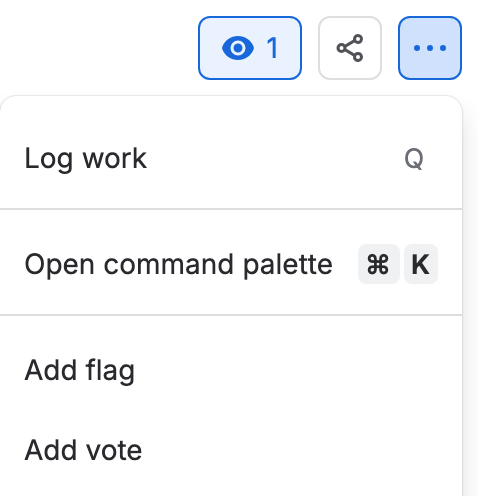
Jira’s More actions menu open, with Log work as its first item A dialog titled Time tracking opens. On a work item with no time logged yet, the Work log tab under Activity also has a Log time button that opens the same dialog.
-
In Time spent, type how long you worked, such as 30m. Jira fills in Time remaining for you and shows Date started and Work description.
-
Check Date started. It starts as the current date and time. To log time for an earlier day, change the date and the time.
-
In Work description, write what you did, such as “Reviewed the checkout copy”. It is optional, and Logline shows it beside the worklog.
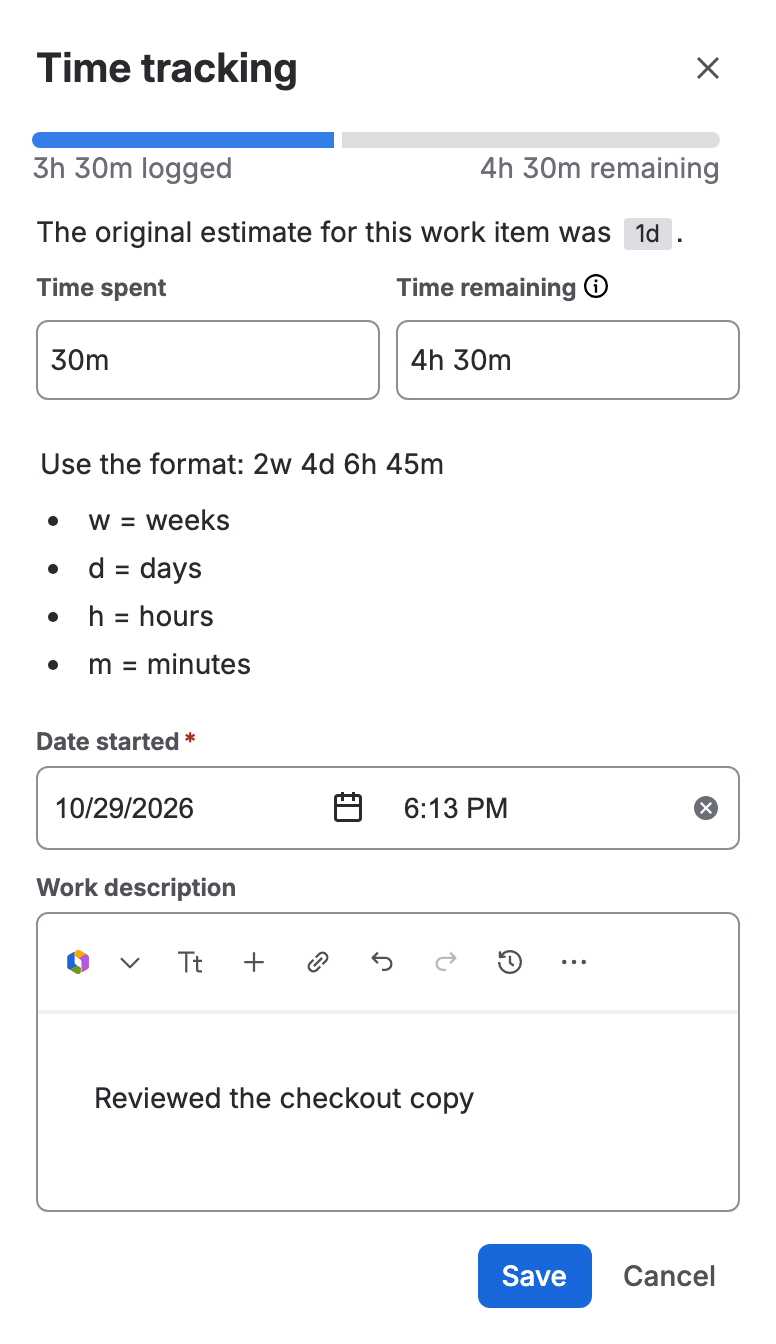
Jira’s Time tracking dialog with 30m typed: Time remaining 4h 30m, a Date started and a Work description -
Select Save.


What happens to the remaining estimate
When you type Time spent, Jira takes it off Time remaining: with 5h remaining and 30m logged, the box shows 4h 30m. If you worked on something bigger or smaller than planned, type your own number in Time remaining before you save. Jira keeps it as it stands, and the Original estimate never changes.
Log time for a past day
Change Date started in the same dialog, in step 5. A report counts a worklog on the day it started, so the hours land on the day you pick; see Periods, days and time zones.
If you don’t see it
- No Log work in the menu: you may not have permission to log time here.
A Jira admin gives it with the Work On work items permission, in the
space’s permission scheme at
Jira’s permission schemes
(replace
your-sitewith your site’s name). Spaces that use a shared scheme share the change. - No Time spent box: the work item’s Time tracking field is off. See Find the Time tracking field.
- Jira will not take the time you typed: write it as 30m, 2h, 1d or 1d 4h, a number and a unit, with a space between units.
What you now have
A worklog on the work item: your time, the day and a note. It is in Jira now, and in Logline the next time a report is built; Recalculate reads it at once. To fix a slip, go on to Edit or delete a worklog.