

Add story points
Lesson 1 of 5
Story points say how big a piece of work is, in a number your team picks. Sumline adds them up from stories to epics, so every story needs one. This lesson puts a number on one story.
Add story points to a work item
-
Open the work item. Click its key anywhere in Jira, or go to
https://<your-site>.atlassian.net/browse/WEB-12, with your own site and key.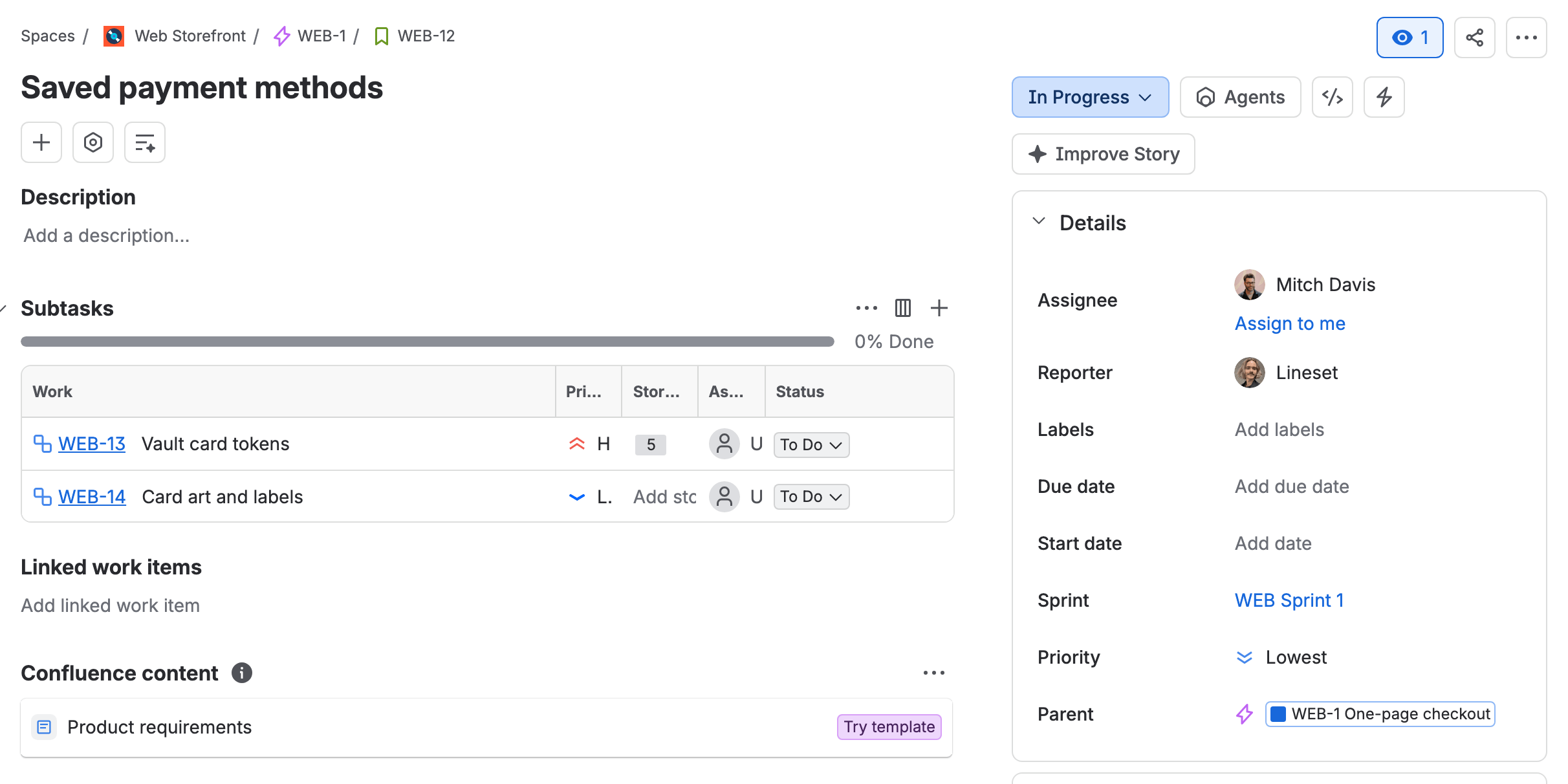
WEB-12, Saved payment methods, with its Details column on the right -
Find Story Points in the Details column on the right. A story with no points yet lists the field under More fields: click More fields to open it.
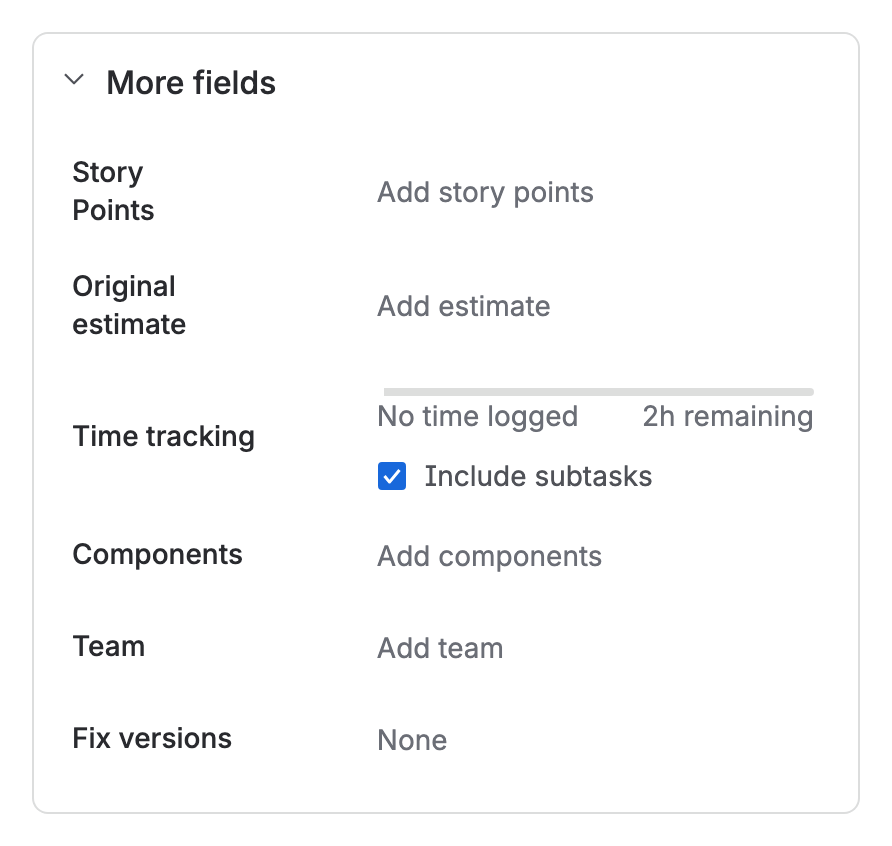
More fields open on WEB-12: Story Points reads “Add story points” -
Click Add story points.
-
Type a number, such as 5. Use the scale your team uses.
-
Press Enter, or click the tick beside the field. Jira saves the number, and from then on shows Story Points in Details.
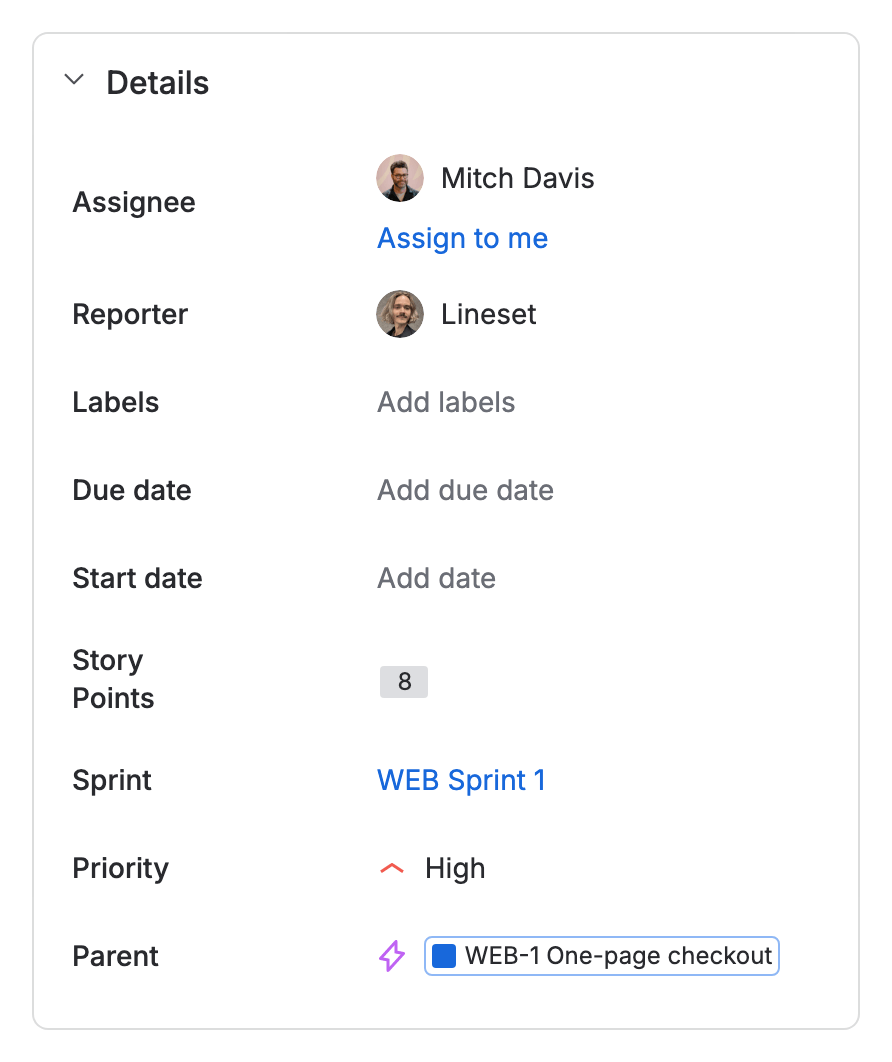
WEB-9 with its Story Points set to 8, in the Details column


To change the number later, click it and type another.
On the board and the backlog, the grey badge at the right of each row is the estimate, and a dash means none. Click the row to open the work item, then follow the steps above.
In a team-managed space
The field is called Story point estimate, and it stays in Details even when it is empty. The steps are the same from step 3.

Sumline reads either field, so a tree that spans both kinds of space still adds up: see Team-managed and company-managed spaces.
If you don’t see it
The field is not on the work item’s screen. A Jira admin adds it:
- Company-managed space. Add Story Points to the work type’s screen at
https://<your-site>.atlassian.net/jira/settings/issues/screens. - Team-managed space. A space admin adds Story point estimate to the work type under Space settings › Work types.
What you have now
A story with a number on it. Next, give it a time estimate: Add time estimates.