

Log time
Lesson 3 of 5
Logging time records what was spent on a work item, and keeps the remaining estimate honest. Sumline adds the logged time and the remaining estimate up the tree. This lesson logs one hour.
Log time on a work item
-
Open the work item. Click its key anywhere in Jira, or go to
https://<your-site>.atlassian.net/browse/WEB-17, with your own site and key. -
Under Activity, click the Work log tab. A work item with nothing logged says so.
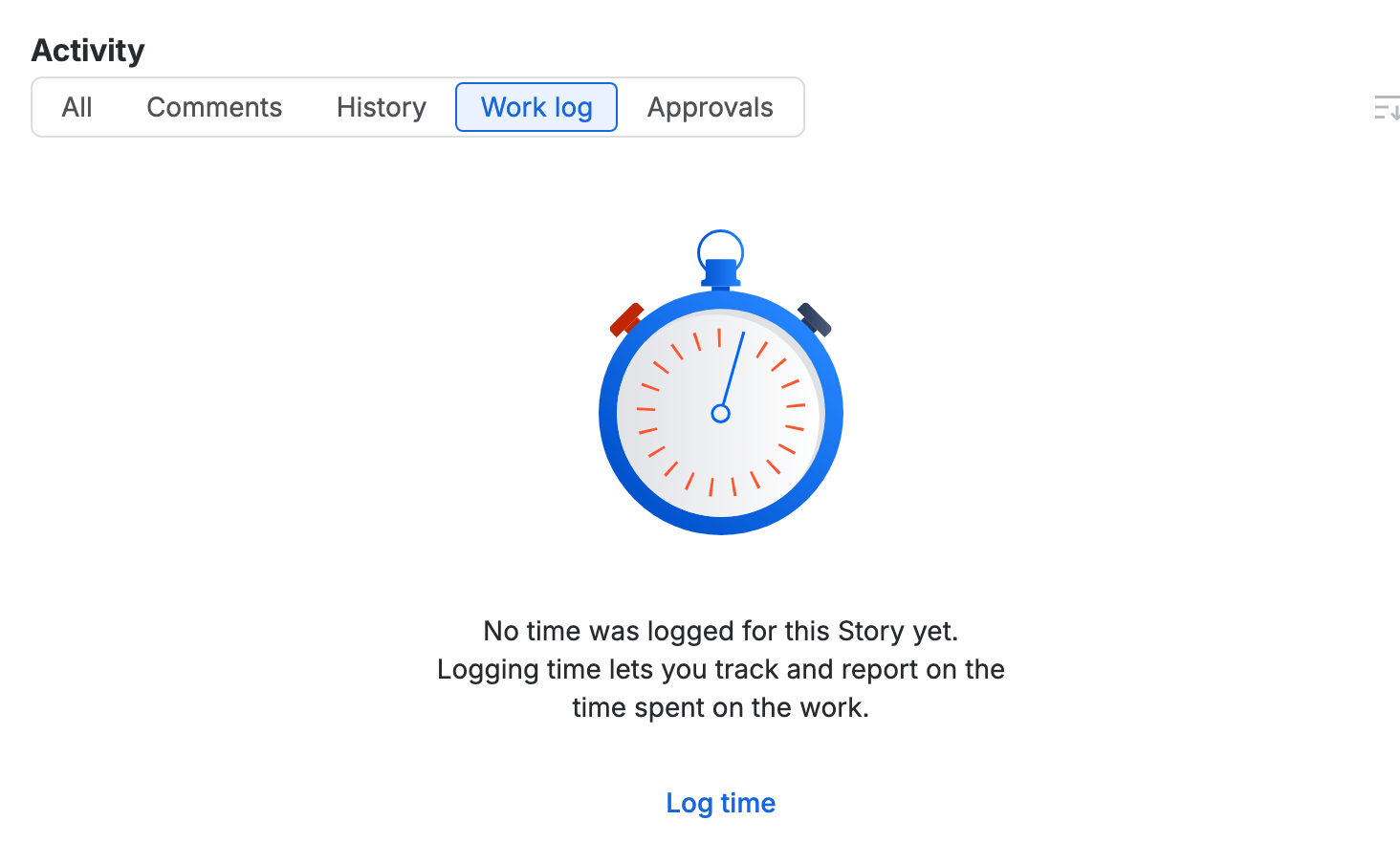
The Work log tab on WEB-17: “No time was logged for this Story yet”, and a Log time link -
Click Log time. Jira opens the Time tracking dialog. Clicking the Time tracking field under More fields opens the same dialog.
-
Type the time in Time spent, such as
1h. Use the same units as an estimate:w,d,handm. -
Leave Time remaining empty and Jira takes the time you logged off the remaining estimate. To set what is left yourself, type it there, such as
3h.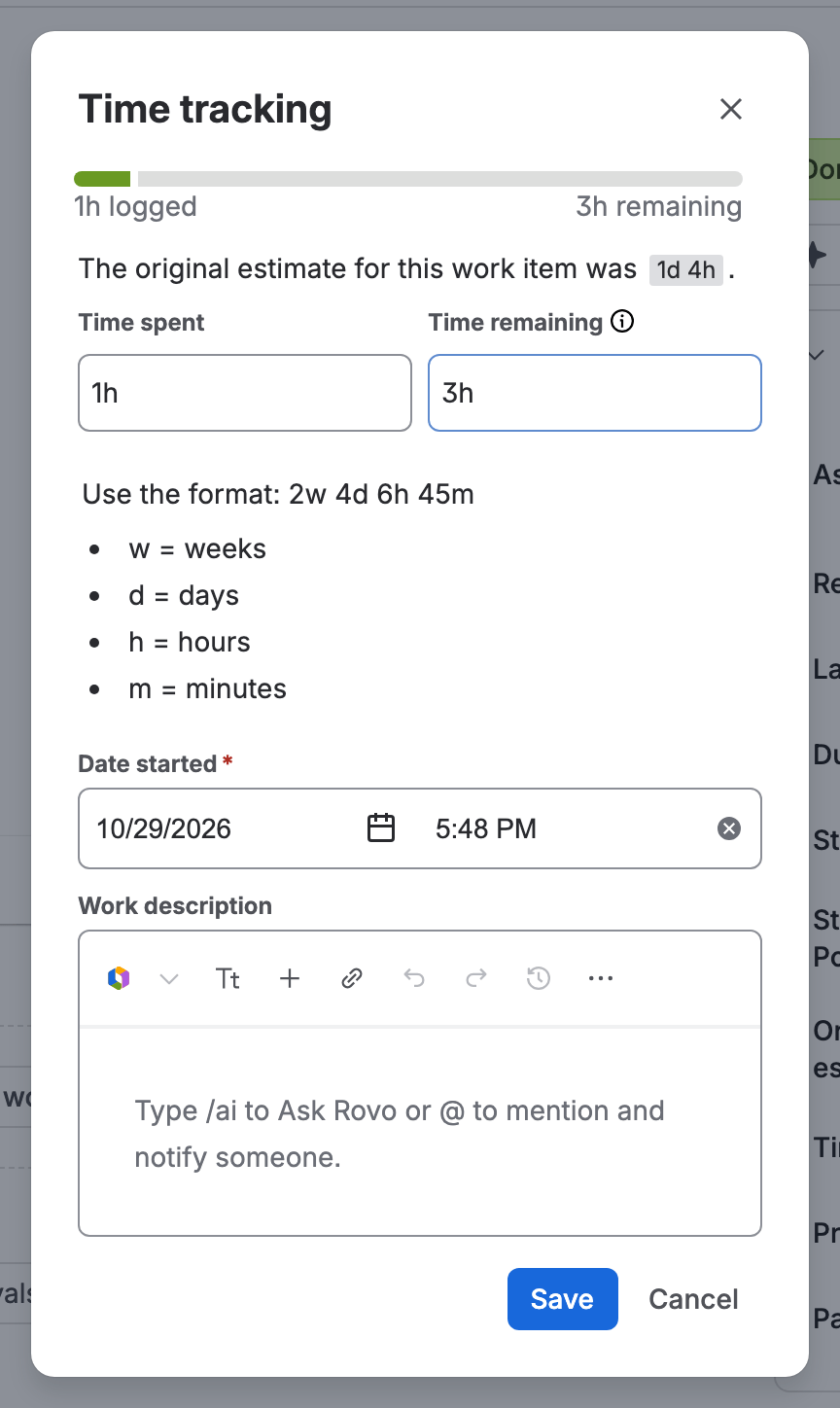
Jira’s Time tracking dialog with 1h in Time spent and 3h in Time remaining -
Check Date started. It starts as now. Add a Work description if you want one.
-
Click Save. The entry shows in the Work log tab, and Time tracking shows the time logged and the time remaining.


If you don’t see it
Log time is missing when you do not have the Work On work items permission in the space’s permission scheme. A Jira admin gives it at https://<your-site>.atlassian.net/secure/admin/ViewPermissionSchemes.jspa. If the Time tracking field is missing too, see Add time estimates.
What you have now
Time spent on a work item and a remaining estimate that moved with it. Next, put the work where Sumline can add it up: Put work under an epic.