

Mark the billable work
Lesson 5 of 5
Jira has no “billable” box on a worklog. So Logline decides by the work item: you say once which work items are billable, and every hour logged on them counts as billable time. You set it up once; after that, people just log time as usual.
How Logline decides
- A worklog is billable when its work item is. All of its time counts, whoever logged it.
- The estimate plays no part. 14h logged on a work item estimated at 12h is 14h billable. Billable is about who pays for the time, not whether the work stayed on budget.
- Everything else is not billable: internal work, meetings, work items nobody marked.
An example: the epic Q4 storefront is client work, so it carries the label billable. Its stories under it count too, once the rule follows the parent (the rule does, from install). Team meetings, in an internal space, has no label: its hours are logged, never billable.
Mark the billable work
Anyone who can edit a work item can do this.
- Open the work item. For client work, the epic is enough.
- In Details, select Labels (it says Add labels when empty).
- Type
billableand press Enter. Letter case does not matter.
That is all: the rule that counts it is on from install.
The rule is already on
Logline comes with this rule: work items with the label billable, and
the stories and sub-tasks under a billable epic or story. There is nothing
to set up. Until something carries the label, Logline says “Nothing is
billable yet” where the billable bar would be, and links here.
A Jira admin changes it only for another rule, once for the whole site:
-
Open Jira settings › Apps › Logline settings.
-
Under Billable time, pick Work items with a label and another label, Work items with a field value, Work items matching JQL, or No billable time. Leave Also count work items whose parent or epic matches ticked to keep the stories and sub-tasks under a billable epic.
-
Select Save.
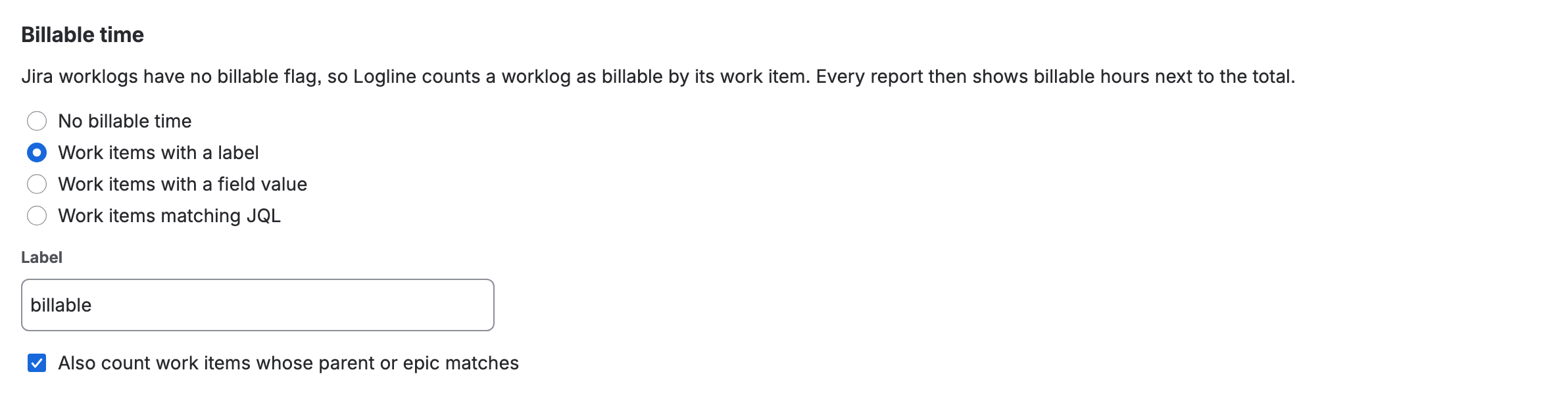
Billable time set to work items with the label “billable”, their sub-tasks and stories included

A label is the simplest rule. Logline can also go by a field (such as a Billing field set to Yes) or by any JQL; see Billable time in Settings.
Add rates, if you bill by the hour
Still in Logline settings, under Hourly rates, set a currency and a Default rate per hour. Rates by person or by space are optional. Logline then turns billable hours into an amount: 10h at $150 is $1,500. Without rates you still see billable hours, just no amount.
Where you see it
- The work item panel: a Billable row with the hours and the amount, then a Billable of logged bar with its share, such as 90%, and, with the other grey notes under the figures, a line naming the work that is not billable.
- Every report: Billable and Amount columns next to the total, the billable hours followed by their share of that row’s logged time in a green, yellow or red lozenge, and a Billable only filter.
- The dashboard gadget: a Billable bar right under Logged, with its amount and share, and each space’s billable hours and share.
The share is green from 75%, yellow from 50% and red below, so a client space at 58% stands out. An admin can change those numbers, or turn the colour off, in Logline settings.
If you don’t see it
- “Nothing is billable yet”: no work item carries the label billable. Mark one, as above. No Billable anywhere instead means a Jira admin chose No billable time: ask them for a rule.
- Hours but no amount: there is a rule but no rates.
- A work item you expected to be billable is not: check that it, or its parent or epic, carries the label, and that the parent box in Logline settings is ticked.
- Only Jira admins can save Logline settings.
What you now have
Every hour logged on client work counts as billable, with its amount, in the panel, the reports and the gadget, and nobody logs time any differently. Next: go further with the reports, in Rows and columns.