

Set hourly rates
Lesson 2 of 6
Rates turn billable hours into an amount. You set a currency and a rate per hour once, and every report then shows what the billable work comes to. You will set one default rate, then a rate for one space, and read the amount in a report.
Before you start, mark the billable work: a rate prices billable hours only. Only Jira admins can see or save rates.
Set the default rate
- Open Jira settings › Apps › Logline settings.
- Find Hourly rates.
- Choose the Currency, an ISO code such as USD or EUR.
- Set the Default rate per hour, such as 120.
- Select Save.
Set a rate for one space
A client’s space can carry the client’s contract rate.
-
Under Hourly rates, in Rates by space, pick the space.
-
Set its Hourly rate, such as 150 for ACME, and select Add.
-
Select Save. A rate applies once you save.
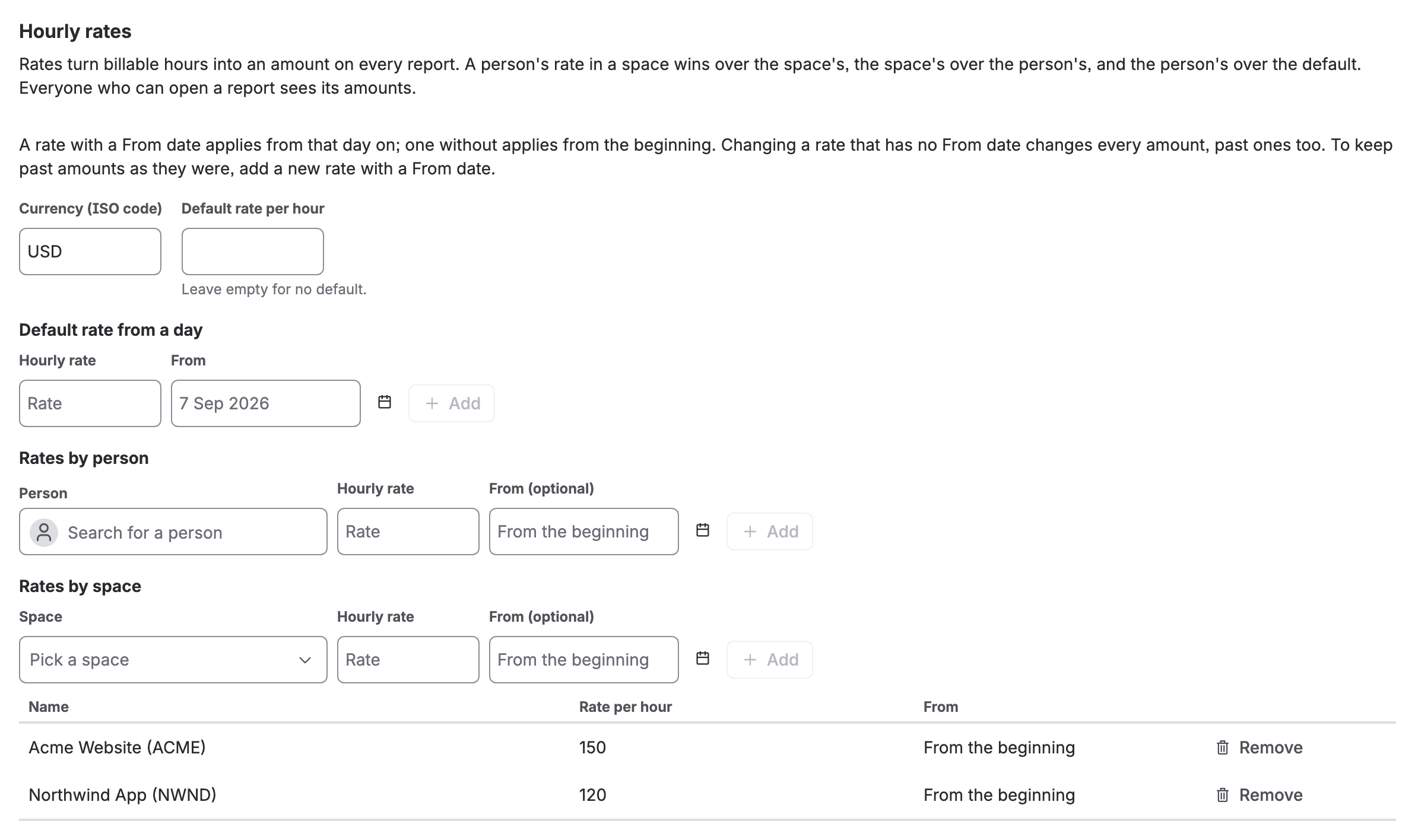
Hourly rates in Logline settings: a default of 120, ACME at 150 and NWND at 120

A Rates by person list works the same way, and so does Rates by person in a space. Both are optional.
Which rate a worklog gets
A billable worklog takes the first rate that applies, in this order:
- its author’s rate in that space;
- the space’s rate;
- its author’s rate;
- the default rate.
So 10h on ACME at 150 an hour is 1,500, whoever logged it, and 10h in a space with no rate of its own is priced at the default.
Raise a rate, and keep past amounts
Every rate has an optional From date. To raise a rate and leave past amounts as they were, add a new rate with a From date: a worklog takes the rate in force on the day it counts in. Changing a rate that has no From date changes every amount, past ones too.
Where you see it
Open a report. Billable is followed by Amount, on every row and on the total’s line, in whole amounts. In the work item panel the amount sits beside the billable hours.
If you don’t see it
- Billable hours but no Amount: no rate applies. Set a default rate, or a rate for the space or the person.
- “No amounts: Logline settings set no hourly rates”: the same, said under the report in How this is counted.
- A few hours with no amount: the report says how many. Logline never prices an hour at zero, so those hours still count as billable.
- No Hourly rates in Logline settings: you are not a Jira admin. Ask one. Every setting is in Settings.
What you now have
Every billable hour has an amount, at the rate you chose, in every report. Next, send a timesheet PDF to the client.