

Add a time estimate
Lesson 1 of 4
Workline plans hours, so every work item it plans needs a time estimate. A work item with an estimate lands in the weeks it will take; a work item without one is left out of the plan. This lesson sets the original estimate, which is all Workline needs to start.
Add an original estimate
-
Open the work item. Click its key anywhere in Jira, or go to
https://<your-site>.atlassian.net/browse/PORTAL-5, with your own site and key. -
Click More fields in the Details column to open it. Original estimate and Time tracking are listed there.
-
Click Add estimate, next to Original estimate.
-
Add the time. Use weeks (
w), days (d), hours (h) and minutes (m):3w,1d 4h,2h 30m. A number with no unit takes the unit your Jira admin set as the default.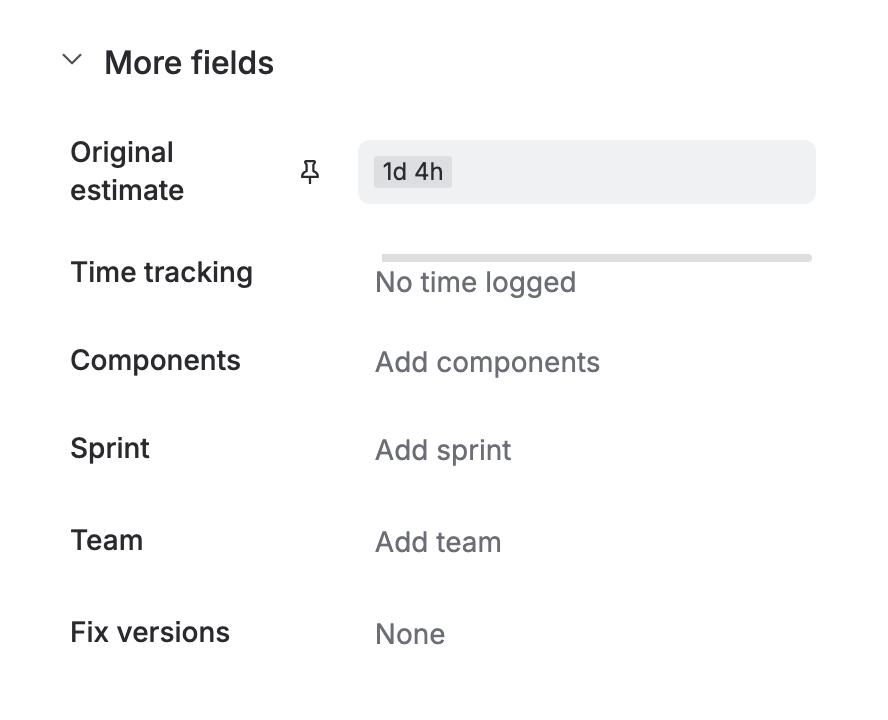
The Original estimate field open in More fields with 1d 4h in it -
Press Enter, or click the tick beside the field. Jira also fills in the remaining estimate with the same time.

The remaining estimate
The remaining estimate is the time still to do. Logging time lowers it, and you can set it by hand in the Time tracking dialog. Workline spreads the remaining estimate over the weeks. Where a work item has an original estimate and no remaining one, Workline works it out as the original less the time logged, and says so in grey on the work item’s panel. Work already done is not planned again.
What counts as a day
A day is the working day your Jira admin set, not 24 hours. On a new site it is 8 hours, and a week is 5 days, so 1d 4h is 12 hours. A Jira admin changes both at https://<your-site>.atlassian.net/secure/admin/TimeTrackingAdmin.jspa, under Working hours per day and Working days per week.
Workline uses those hours too, until a Jira admin sets Workline’s own: see Set working hours and holidays.
If you don’t see it
The Time tracking field is hidden or not on the screen.
- Company-managed space. A Jira admin shows Time tracking in the space’s field configuration and adds it to the screens for creating and editing:
https://<your-site>.atlassian.net/jira/settings/issues/screens. - Team-managed space. A space admin adds Time tracking to the work type under Space settings › Work types.
A work item with neither estimate shows on its Workline panel as Add a remaining estimate and Workline plans it.
What you have now
A work item with an original and a remaining estimate, which is what Workline spreads over the weeks. It still needs a person and a day to land on. Next: Assign work and give it dates.