

Set working hours and holidays
Lesson 3 of 4
A person with a 40-hour week and a week with a public holiday are not alike. Workline shows each person’s planned hours as a share of the hours they can work, so it needs to know those hours. This lesson is for a Jira admin: it sets the working week, a part-time person, a holiday and a person’s time off.
Open Workline’s settings
-
In Jira, open Jira settings › Apps › Workline settings. It is for Jira admins.
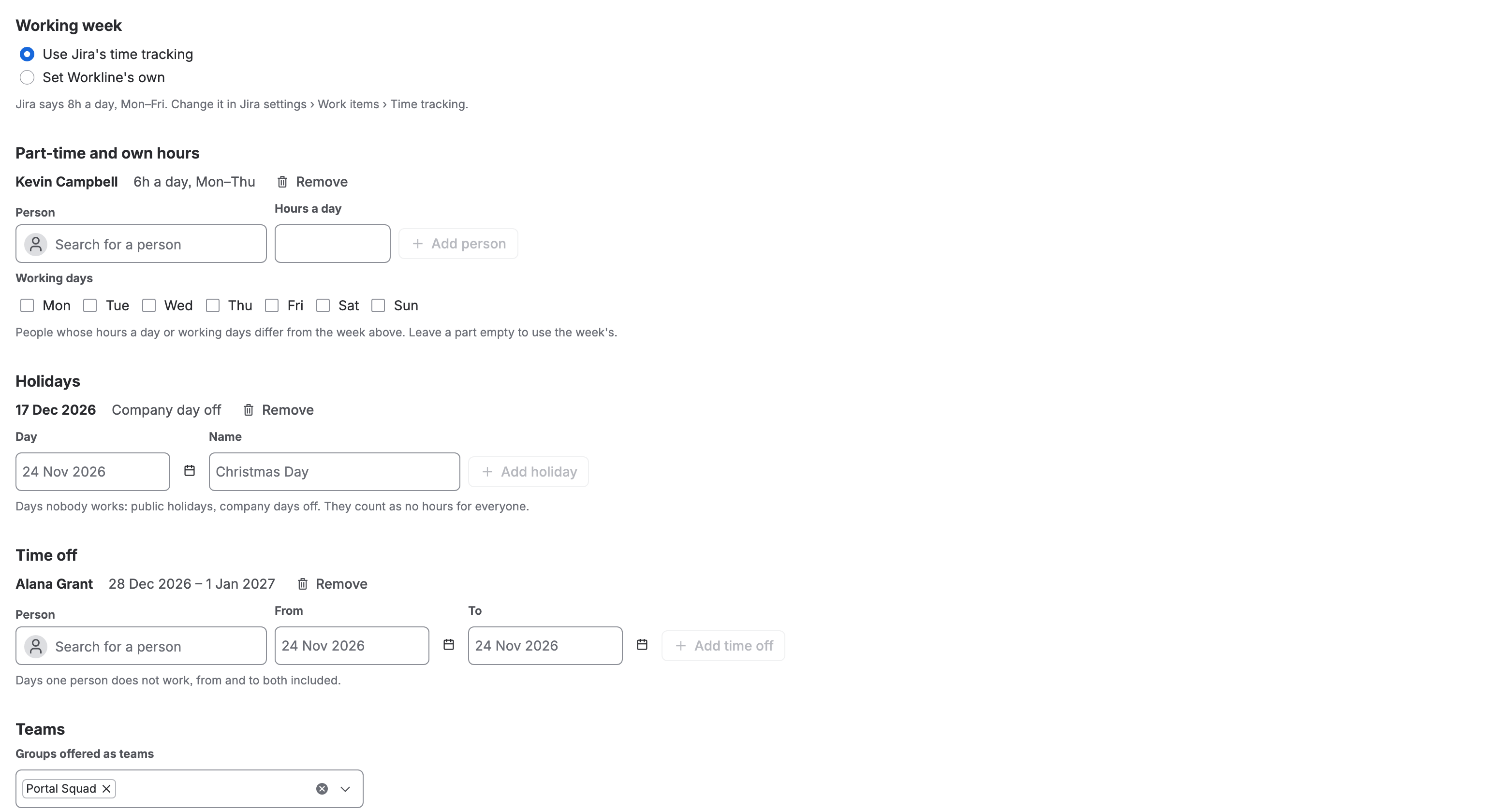
Workline settings: the working week, part-time hours, holidays, time off and the groups offered as teams

Set the working week
-
Under Working week, leave Use Jira’s time tracking chosen to use the hours a day and days a week your site already has. The line under it says what they are, such as 8h a day, Mon–Fri.
-
Or choose Set Workline’s own, add Hours a day, above 0 and up to 24, and pick the Working days.
Add a part-time person
-
Under Part-time and own hours, find the person in Person, using Search for a person.
-
Add their Hours a day, pick their Working days, or both. A part left empty uses the working week’s.
-
Click Add person. The plan then shows their hours under their name, such as 6h a day, Mon–Thu.
Add a holiday
-
Under Holidays, pick the Day and add the Name, such as Christmas Day.
-
Click Add holiday. The day counts as no hours for everyone.
Add time off
-
Under Time off, find the person in Person.
-
Pick From and To. Both days are included.
-
Click Add time off. It counts as no hours for that person alone.
Save
Click Save. Nothing changes until you do. Every plan uses the new hours on its next read.
What changes in the plan
A week with fewer hours to work gives a higher share for the same planned hours, so a week with a holiday turns yellow or red sooner. How each part counts is in Working hours and holidays.
If you don’t see it
Only Jira admins can change the settings. Anyone else sees a line that says so, and the plan runs on Jira’s time tracking. Ask a Jira admin to follow this lesson.
What you have now
A plan that knows when your people work. Next, see where Workline shows up: Find Workline in Jira.