

Assign work and give it dates
Lesson 2 of 4
Workline shows whose week a work item fills, and which week. The estimate gives the hours; the assignee gives the person; dates or a sprint give the weeks. This lesson gives a work item all three.
Assign the work item
-
Open the work item. Click its key anywhere in Jira, or go to
https://<your-site>.atlassian.net/browse/PORTAL-5, with your own site and key.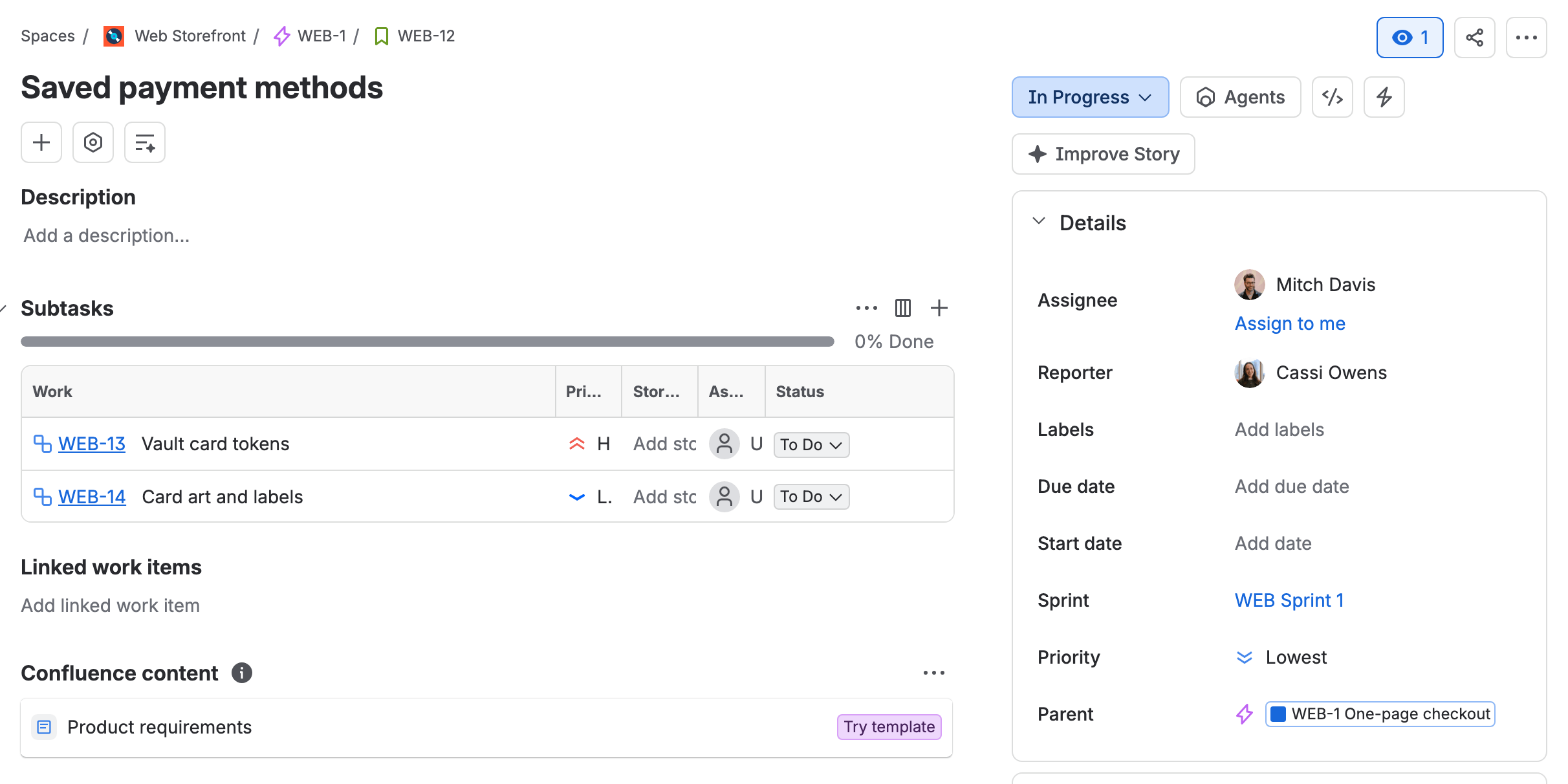
A work item in Jira with its Details column on the right -
In Details, click the name under Assignee, here Unassigned, or click Assign to me.
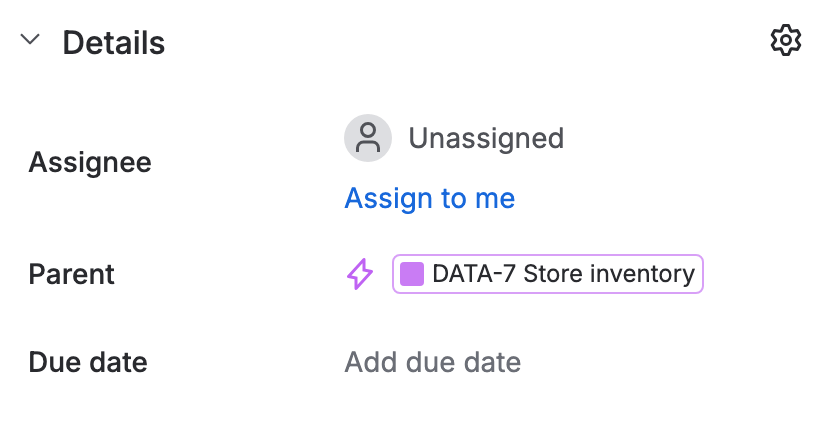
Details with Assignee reading Unassigned and a Due date that reads Add due date -
Pick the person who will do the work.


Workline puts the work item in that person’s row. With nobody assigned there is no row for it, and the panel says Assign someone and Workline shows their weeks.
Give it a due date
-
In the same Details, click Add due date and pick a day.
-
If you want the work to start later, click Add date next to Start date and pick a day. If you do not see it, see below.
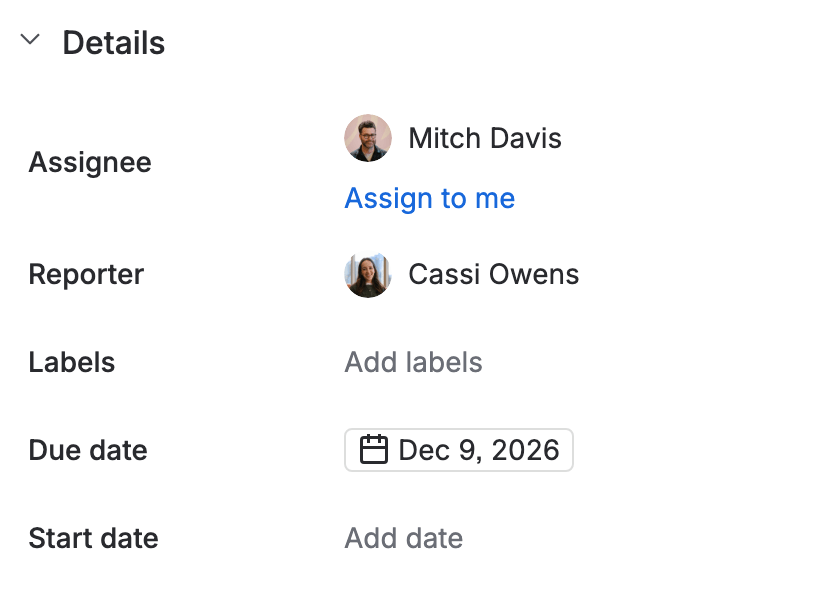
Details with a Due date set and Start date reading Add date

Workline spreads the remaining estimate over the person’s working days from the start date, or from today, to the due date. 16 hours over four working days is 4 hours in each, so the work item lands in the weeks those days fall in. With a start date and no due date, Workline works from the start at the person’s own hours a day until the estimate is done.
A due date that has gone by puts all of the work on today, and Workline marks the work item as late.
Or use a sprint
A work item with no dates takes its sprint’s dates. Click Add sprint in More fields and pick the sprint. Workline uses the active sprint, or the next future one that has dates.
Dates win: a work item with a start or due date uses them, not its sprint.
If you don’t see it
If Add due date or Add date is missing, the space’s screen does not hold the field. In a company-managed space a Jira admin adds it to the screens at https://<your-site>.atlassian.net/jira/settings/issues/screens; in a team-managed space a space admin adds it under Space settings › Work types.
What you have now
A work item with an estimate, a person and a week. A work item with an estimate and no dates and no sprint is shown as Unscheduled, never guessed into a week: give it a date or plan it from the plan. Next, tell Workline when your people work: Set working hours and holidays.