

Mark what is invoiced
Lesson 5 of 7
A mark says a client, an epic or a space is invoiced up to a day. Logline then splits Billable into Invoiced and To invoice, so no hour is billed twice, and flags time logged after the invoice. You will mark September as invoiced and read the result. Logline makes no invoice and sends nothing: a mark is your note of what you billed.
Before you start, choose what is billable. Only Jira admins and the members of the group that sees cost and margin can mark, and the Mark invoiced button shows only on a report with billable time. Hourly rates add the amounts.
Mark a client as invoiced
-
Open Apps › Logline, then set Scope, Period and Rows as for the timesheet PDF. Each client’s work should be its own row.
-
Select Show report.
-
Select Mark invoiced, among the buttons under Show report.
-
In What was invoiced, pick the client: a space, an epic or a value of your client field, from the report’s top rows.
-
In Invoiced up to, set the last day the invoice covers, such as 15 Sep. It starts on the report’s last day, never after today.
-
In Reference, add the invoice number, such as INV-1042. It is optional: the invoice’s number, not a name.
-
Select Save. Logline says what changed: “Acme Website: invoiced to 15 Sep, INV-1042”.
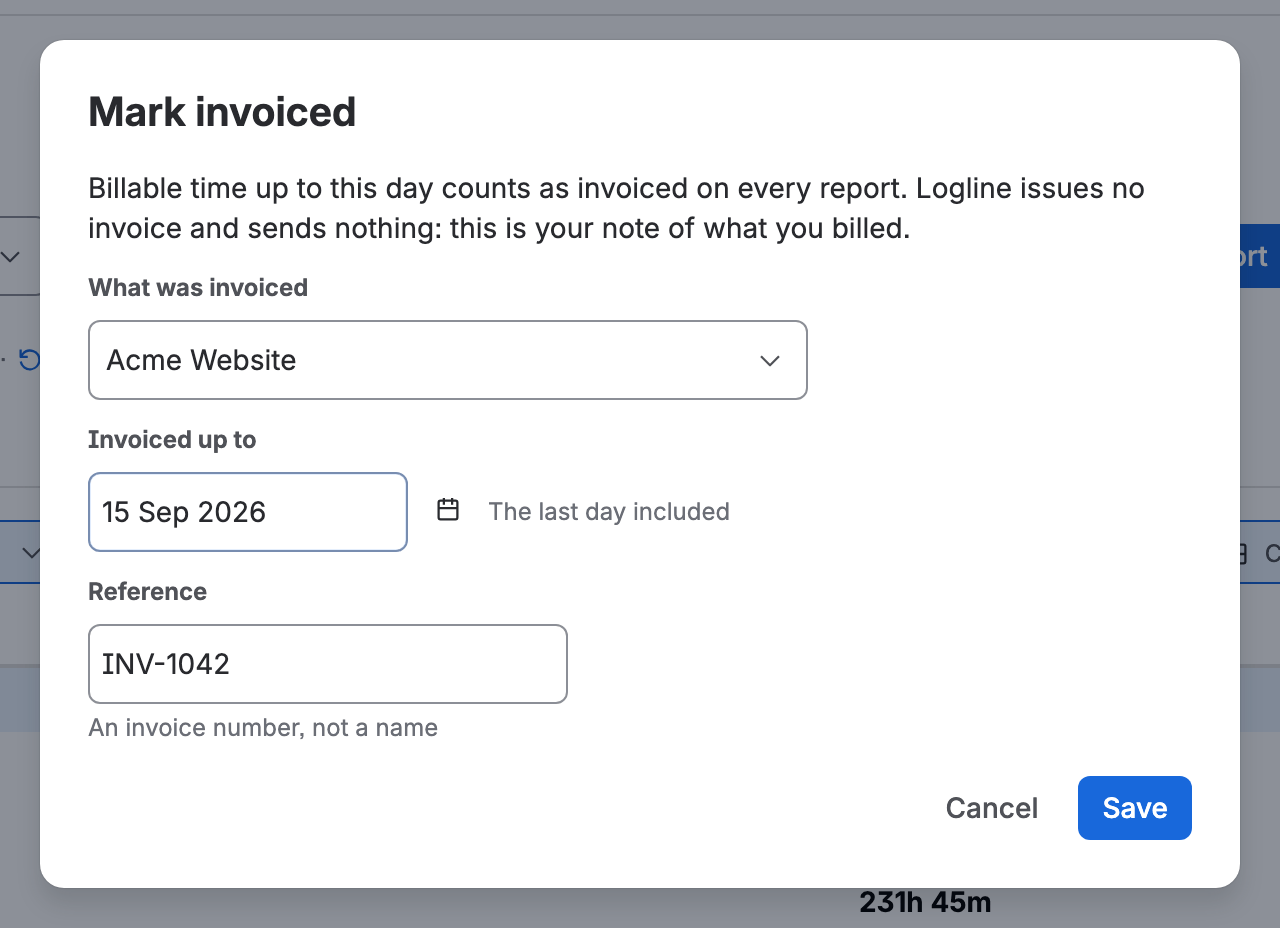
The Mark invoiced dialog: Acme Website, invoiced up to 15 Sep 2026, reference INV-1042

What the report shows
The report splits at once. Next to Billable and Amount it adds Invoiced and To invoice, in hours and, with rates, in money. The Total line comes first, and the two always add up to Billable. A row no mark covers shows all of its billable time under To invoice.

A mark covers the billable time started on or before its day, in the report’s time zone. An epic’s mark covers its child work items, a space’s its work items, and a client’s the work items whose client field holds it. Where two marks cover a worklog, the epic’s counts first, then the client’s, then the space’s. How this is counted lists the marks the report used.
A line in amber, over the tabs, flags time logged or changed after the mark was saved, in an invoiced period: “1h logged after invoicing on ACME-4 · invoiced to 15 Sep, INV-1042”. Select its hours to open those worklogs. Five work items show, then a line that opens the rest. Add that time to your next invoice, or mark a later day.
What the downloads hold
Once a mark covers the report’s billable time, the timesheet PDF and the Xero and QuickBooks files hold only what is To invoice, and the menu says so. The next invoice never repeats the last.

Excel and CSV carry both columns, so a spreadsheet keeps the whole picture.
Change or remove a mark
-
Open Jira settings › Apps › Logline settings, then find Invoiced.
-
Each mark is a line, newest first: what it covers, Invoiced to and the Reference. Select Edit to change the day or the reference, or Delete to remove it. A deleted mark puts its time back under To invoice.

Invoiced in Logline settings: Space ACME, 15 Sep, INV-1042, with Edit and Delete

Every mark is kept, up to 100 on the site, so you can see which invoice covered which month. For each client, the latest day counts.
If you don’t see it
- No Mark invoiced button: you are not a Jira admin or in the group that sees cost and margin, or the report has no billable time. Check the period, and that the work is billable.
- No Invoiced and To invoice columns: no mark covers this report’s billable time. Mark the client, epic or space the report’s rows are.
- “To invoice” missing from the Download menu: the same reason. Without a mark, the files hold all the billable time.
- Nothing to pick in What was invoiced: set Rows to Space, Epic or your client field, so each client is a row.
What you now have
A record of what each client is invoiced up to, a report that splits the rest, and downloads that leave out what you already billed. Next, set a budget so you see what is left before the next invoice is due.